Elite Buyer

  • Subscribe to our RSS feed.
  • Twitter
  • StumbleUpon
  • Reddit
  • Facebook
  • Digg

Tuesday, 24 May 2011

Office 2007 download file download

Posted on 14:06 by Unknown
If you need to download office 2007 installtion software go http://www.tinyurl.com/
http://tinyurl.com/34egk2  is the file

good luck
Read More
Posted in office, office2007 | No comments

Thursday, 7 April 2011

Dentrix Getting a message saying the insurance claim format is invalid

Posted on 14:22 by Unknown
Only get trouble with printing claims.. ever thing works great but cant print claims.
Getting a message saying the insurance claim format is invalid. dx2007. 


Solution
what you need to to is ftp to dentrix
ftp.dentirx.com
click on Pub
click on 11.0
click on CDT-2007Update.exe
and download the new definition. you need to do it for every pc that has dentrix. 


hope this helps.


Read More
Posted in claim, dentrix, format, insurance, invalid | No comments

Friday, 18 February 2011

How To Setup A Wireless Profile On Windows 7

Posted on 16:29 by Unknown
Recently I wrote a post on how to connect to a wireless access point on Windows 7, but at some point you probably will have to setup a wireless profile manually on your Windows 7 computer, so now in this article I will show you how to do that.

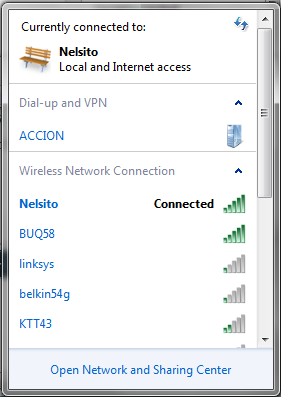
On windows 7, and on most of Windows versions, the wireless bar is located at the right hand side of the system bar, close to the system clock:
wireless bar
If you click on the wireless bar, the currently available wireless window come up:
Wireless connections 
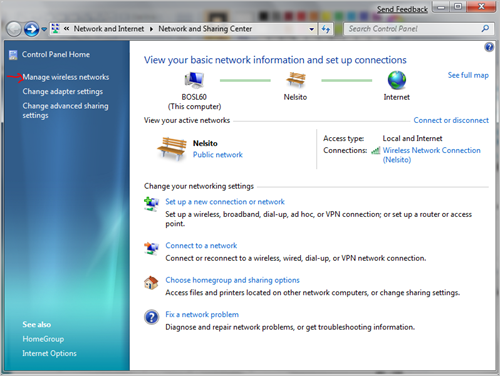
click on “Open Network and Sharing Center” that should bring you to the control panel network management utility:
manage wireless networks
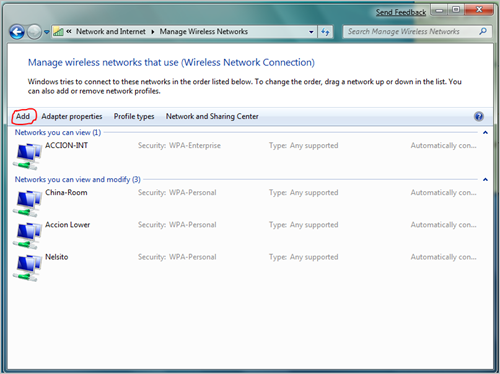
click on “Manage wireless networks” as my nice arrow indicates (:> clicking on that should bring you to the wireless network utility, click on Add:
wireless networks 
The manually connect to wireless wizard will come up. click on Manually create a network profile:
image
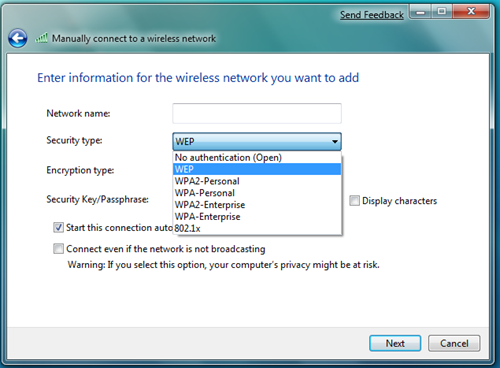
Enter the wireless access point on the next window that comes up:
Wireless connection
Enter your settings accordingly, and if you wish to, check the “Start this connection automatically”  click Next after entering your information. and that should setup the local profile for your wireless on your laptop.
Read More
Posted in | No comments

Wednesday, 16 February 2011

How To flush DNS on you desktop computer

Posted on 16:37 by Unknown
If you get a Ip conflict on your network you need to flush out the DNS on that systems.

n Microsoft Windows, you can use the command ipconfig /flushdns to flush the DNS resolver cache. Open the command prompt and type the following:
C:>ipconfig /flushdns
Windows IP Configuration
Successfully flushed the DNS Resolver Cache.

 The above command will completely flush the DNS, deleting any incorrect entries too. You can also use the command ipconfig /displaydns to view the DNS resolver cache.

Turning Off DNS Caching under Microsoft Windows

If you experience frequent issues with DNS caching under Microsoft Windows, you can disable client-side DNS caching with either of these two commands:
net stop dnscache
sc servername stop dnscache
This will disable DNS caching until the next reboot. To make the change permanent, use the Service Controller tool or the Services tool to set the DNS Client service startup type to Disabled. You can permanently disable DNS Client by following the below steps:
  • Goto Start and click on Run.
  • Type Services.msc in the Run command box.
  • A window listing all the services will popup. Search for a service called DNS Client.
  • Double click on the listed DNS Client service and click Stop. Similarly, you can restart it by clicking Start.

Tuning DNS Caching under Microsoft Windows

You can modify the behavior of the Microsoft Windows DNS caching algorithm by setting two registry entries in the HKEY_LOCAL_MACHINESYSTEMCurrentControlSetServicesDnscacheParameters registry key.
The MaxCacheTtl represents the maximum time that the results of a DNS lookup will be cached. The default value is 86,400 seconds. If you set this value to 1, DNS entries will only be cashed for a single second.
MaxNegativeCacheTtl represents the maximim time that the results of a failed DNS lookup will be cached. The default value is 900 seconds. If you set this value to 0, failed DNS lookups will not be cached.

Flush DNS in Mac OSX

In Mac OSX Leopard, you can use the command dscacheutil -flushcache to flush the DNS resolver cache:
bash-2.05a$ dscacheutil -flushcache
In Mac OSX versions 10.5.1 and before, the command lookupd -flushcache performed the same task:
bash-2.05a$ lookupd -flushcache

Flush DNS in Linux

In Linux, the nscd daemon manages the DNS cache. To flush the DNS cache, restart the nscd daemon. To restart the nscd daemon, use the command `/etc/init.d/nscd restart`.get more help
Read More
Posted in | No comments

Tuesday, 21 December 2010

How to configure the size limit for both (.pst) and (.ost) files in Outlook 2010, Outlook 2007, and in Outlook 2003

Posted on 08:15 by Unknown
microsoft outlook max out at 2GB, you can edit the register and make it go up to 20GIG.

Follow these steps to configure the size limit for both the .pst and the .ost files.

Note The settings that are discussed in this article apply to both .ost and .pst files. If you modify these registries, this can affect .ost files that are used with Cached Exchange Mode, with AutoArchive, and with .pst. files.

Important This section, method, or task contains steps that tell you how to modify the registry. However, serious problems might occur if you modify the registry incorrectly. Therefore, make sure that you follow these steps carefully. For added protection, back up the registry before you modify it. Then, you can restore the registry if a problem occurs. For more information about how to back up and restore the registry, click the following article number to view the article in the Microsoft Knowledge Base:
322756 (http://support.microsoft.com/kb/322756/ ) How to back up and restore the registry in Windows

1. Click Start, and then click Run.
2. In the Open box, type regedit, and then click OK.
3. In the left pane, expand My Computer, and then expand HKEY_CURRENT_USER.
4. Expand Software, and then expand Policies.
5. Expand Microsoft, and then expand Office.
6. Expand 11.0 for Outlook 2003, 12.0 for Outlook 2007, or 14.0 for Outlook 2010, and then expand Outlook.
7. Click PST, and then right-click MaxFileSize in the right pane.
8. Click Modify, and then type the value in the Value data box.
9. Click OK.
10. Right-click WarnFileSize, and repeat steps 8 through 9.
11. Right-click MaxLargeFileSize, and repeat steps 8 through 9.
12. Right-click WarnLargeFileSize, and repeat steps 8 through 9.

Note You may have to create the registry values if they do not exist. If the registry values do not exist, follow these steps to create them.

1. Click Start, click Run, type Regedit, and then click OK.
2. In the left pane, expand following registry key:

For Outlook 2010
HKEY_CURRENT_USER\Software\Policies\Microsoft\Office\14.0\Outlook
For Outlook 2007
HKEY_CURRENT_USER\Software\Policies\Microsoft\Office\12.0\Outlook
For Outlook 2003
HKEY_CURRENT_USER\Software\Policies\Microsoft\Office\11.0\Outlook
3. On the Edit menu, point to New, and then click Key.
4. Type PST, and then press ENTER.
5. On the Edit menu, point to New, and then click DWORD value.
6. Type MaxFileSize, and then press ENTER two times.
7. In the Edit DWORD Value window, type the value in the Value data box, and then click OK.
8. Repeat steps 3 through 7 to create another DWORD WarnFileSize.
9. Repeat steps 3 through 7 to create another DWORD MaxLargeFileSize.
10. Repeat steps 3 through 7 to create another DWORD WarnLargeFileSize, and then close the registry.

Note For mass deployment of these registry keys on end-user machines, the ORK tool can be used.

To automate the registry creation on end-user machines, use ORK for deployment scenarios.
It is recommended that the values between the MaxFileSize registry entry and the WarnFileSize registry entry, and the values between the MaxLargeFileSize registry entry and the WarnLargeFileSize registry entry be at least 5 percent (%) so that internal processes are not hindered from continuing.

If the value of the MaxFileSize registry entry ever exceeds the ANSI 2 gigabyte (GB) limit on either the .pst or the .ost files, the value will be ignored to limit the size to 2 GB to prevent corruption. The default value for the WarnFileSizeregistry registry entry is calculated to be 95% of the MaxFileSize registry entry for a UNICODE file, and it remains at 1,950,368,768 bytes for small ANSI files.

Note You can set the UNICODE limits beyond the values that are listed in the table. However, we do not recommend doing this because performance can decrease.

If .ost files or .pst files reach the limit that is specified in the WarnFileSize or the WarnLargeFileSize registries, the compaction function is triggered to try to reduce the size of the file to a usable level. When the WarnFileSize or the WarnLargeFileSize limit is reached, e-mail messages cannot be sent (provided that sent e-mail messages are stored in the Sent Items folder), and items cannot be copied or moved within the file. If the file is an archive .pst file that is used for AutoArchive, the AutoArchive operation will fail. However, e-mail messages can be deleted or archived from a .pst or from an .ost file that is currently being used as the default delivery location.

The following are some of the errors that may occur when files reach the maximums specified in the registries:

* When you try to move items to a .pst or an .ost file that has reach the limit, you receive the following error message:
Can't move the items. The file \.pst has reached its maximum size. To reduce the amount of data in this file, select some items that you no longer need, and then permanently delete them.
* When e-mail messages are delivered to a .pst or an .ost file that are using Cached Exchange Mode, and the file has reached the limit, the Mailbox Cleanup wizard launches.

http://support.microsoft.com/kb/832925/
Read More
Posted in | No comments

Monday, 20 December 2010

IE8, IE9 really Slow when I click on it.

Posted on 10:04 by Unknown

IE8 slow when you click on it.

ZDNet published the results of some performance testing involving the current crop of browsers. During the course of my research, I stumbled across a tweak that I was at first hesitant to publish. After thinking carefully about it, I decided to do so. I’m glad I did. I have now heard from easily a dozen people via e-mail and in comments who say the improvement in performance for them is amazing.
Please read the original post (Is IE8 really fat and slow?) to get the full background. If you’re experiencing problems with IE8 being slow to load pages, especially when multiple tabs are involved, this might be worth a try. Because this tweak is simply registering a DLL that should have been registered as part of the IE8 installation, there is no harm that can come from trying this.
Here are the instructions.

FOR WINDOWS XP

1. Click Start, then click Run.
2. In the Run dialog box, type cmd and press Enter.
image
3. In the Command Prompt window, enter this text and press Enter:
regsvr32 actxprxy.dll
4. Restart your computer.

FOR WINDOWS VISTA/WINDOWS 7

1. Type cmd in the Start menu Search box.
2. Right-click the Cmd shortcut that appears at the top of the search results list, Under Programs, as shown here.
image
3. Choose Run As Administrator.
4. In the Command Prompt window, enter this text and press Enter:
regsvr32 actxprxy.dll
5. Restart your computer.
If this works for you, let me know in the comments below…
Read More
Posted in ie9, Internet Explorer Windows XP Professional, slow, this copy of windows must be activated with microsoft before you can log on., Windows XP SP3, Word 2007 ie8 | No comments

Tuesday, 14 December 2010

Ten tips to make email more productive

Posted on 12:27 by Unknown

Ever been overwhelmed by emails at work? Experts report billions of emails
are sent every day and they’re still increasing. With so many messages
arriving throughout the day, email can easily become a continual interruption
and distraction from getting real work accomplished. Here are some useful tips
that will help give you more control over your time and increase your efficiency.

1 Put email on a schedule

Instead of reading and responding to emails as they arrive, set aside
specific times of day for them. This can vary from one to three or four times
a day, depending on your situation. If you’re in the habit of monitoring
your email continually it may take extra effort to change your behavior,
but once you do you’ll soon find yourself getting more accomplished.
2 Get set-up for success
Once you’ve established specific times for email, set-up some new rules
for your email application to help. Instead of automatically checking for
new messages every minute, adjust your application to check at a more
appropriate interval. You can also disable delivery previews and sounds to
reduce email’s intrusion into your productivity.
3 Read it and deal with it
Some messages are simply information, but others require action. Make
a renewed effort to deal with emails as you read them—reply, file, delete,
or print. If you don’t, you’ll end of up reading the same message two or
more times. In fact, if you know in advance that an email will take some
concentrated effort, don’t read it until you have the time to deal with it.
4 Put the subject line to work
When you write an email, take a moment to ensure the subject line is as
clear and complete as possible. For example, “Need feedback on Jones
Sales Presentation (attached) by Friday” is much more productive than
simply “Sales Presentation Review.”
5 Make the subject the message
When your message is very short use the subject line for the entire
message. For example, “Reminder: Feedback on Jones Sales Presentation
Due Today (EOM).” Use End of Message (EOM) so recipients know the
body of the email is blank and won’t waste time opening it.
6 Keep your message focused
When most people read on-screen they tend to scan. Big blocks of text
discourage readers and information is more easily overlooked. Keep your
emails short, to-the-point, and clear. Here are some tips to help:
• Add a space between paragraphs
• Use bullet points to improve readability
• List action items (with names)
• Use separate emails for disparate topics

more info go to: EliteBuyer.com

Read More
Posted in email, outlook 2003, outlook 2007, outlook 2010, productivity, schedule | No comments
Newer Posts Older Posts Home
Subscribe to: Posts (Atom)

Popular Posts

  • How to Calculate Days Between Dates in Excel
    How to Calculate Days Between Dates in Excel Open a new workbook in Microsoft Excel. Type the start date in a cell. For example, type 12/22/...
  • great apps to handle emergency recoveries for your Computer
    Great apps to handle emergency recoveries on your computer     Roadkil's Unstoppable Copier             Roadkil's Unstoppable Copi...
  • Cannot run computer management on Mircosoft OS.
    Try entering compmgmt.msc in Start / Search box and enter.  Double click on the program icon that appears and see if it opens.  I doubt thi...
  • How to boot Windows 7 from a USB Flash Drive Step By Step
    Step by Step on how to install Windows 7 from a USB Flash Drive. Download Diskpart form Microsoft site Run diskpart Type : List disk You sho...
  • Best Music Apps
    15 of the best music apps Lanyard Lanyard is a beautiful way to keep and share memories of the gigs you’ve been to. This Web app (native...
  • Error -6123, 0: Connection to the QuickBooks
    Error -6123, 0: Connection to the QuickBooks company file has been lost When opening or while using a QuickBooks company file over a networ...
  • Tools to Help Simplify Social Networking management and marketing
    Five tools to help simplify social networking management Takeaway: If your social media presence is becoming impossible to manage, one of t...
  • Dentrix Getting a message saying the insurance claim format is invalid
    Only get trouble with printing claims.. ever thing works great but cant print claims. Getting a message saying the insurance claim format is...
  • How to Multi Boot Windows 7
    How to Multi Boot Windows 7 Windows 7 takes over the primary partition as soon as you install it. So, how do you multi boot Windows 7? This...
  • Best Free Windows Enhancements
    The Best Free Windows Enhancements That You Should Know About  1 . Listary : advanced file filtering in explorer at the press of a button Th...

Categories

  • -6123
  • 100
  • 101 most useful
  • 128bit
  • 15 Android widgets that will make iPhone users jealous
  • 20 sites to promote your web site
  • 2007
  • 2010
  • 3gs
  • 4gs
  • 562-366-4177
  • 5g
  • 5gs
  • 6123
  • 64bit
  • 90505
  • 90732
  • 90804
  • 90813
  • access
  • activex
  • adli
  • alert
  • apps
  • archive
  • array
  • attachments
  • audio
  • autocomplete
  • backtoschool
  • basic
  • best
  • Best PDF Tools
  • better
  • blogs
  • blue screen
  • bluscreen
  • bmw
  • boot
  • browser
  • browser chooser
  • bsod
  • burn cd
  • burn dvd
  • burn iso
  • ca
  • capture
  • carson
  • ccleaner
  • cd
  • certificate problems
  • changes
  • cheat
  • cis
  • claim
  • classicshell
  • cmb
  • combofix
  • command
  • compaq
  • complex
  • compliance
  • computer
  • computer fix
  • computer help
  • computer upgrade.
  • confugure.
  • connection
  • contacts
  • control panel
  • create
  • creating
  • data
  • data21
  • defrag
  • defraging
  • defragmenting
  • delete
  • deleted
  • delivered
  • dell
  • dentist
  • dentrix
  • desktop
  • desktop vista
  • desktop windows 7
  • desktop windows 8
  • desktp
  • disaster
  • disc
  • disk2vhd
  • doubling
  • download
  • Driver manager
  • dual monitors
  • duplicate
  • dvd
  • easy transfer
  • ebcnetworks
  • efficient
  • elitebuyer
  • email
  • email e-mail
  • emergency
  • emial color code
  • enhancements
  • entrepreneur
  • error
  • expand
  • explorere
  • failure
  • fast
  • fax
  • file
  • file zilla
  • files
  • filesharing
  • filezilla
  • finder
  • firefox
  • firewall
  • fix
  • fix center
  • fixmycomputer
  • folder
  • folders
  • format
  • free
  • freezing
  • ftp
  • gmail
  • google
  • Google sync with iPhone
  • google.
  • greeting
  • hard drive
  • have
  • help
  • help fix computer
  • hep
  • High Ranking in Search engines
  • hot Corner
  • how to
  • howto
  • hp
  • hyperv
  • icloud
  • ie8
  • ie9
  • improve
  • inbox
  • indexing
  • insurance
  • internet
  • Internet Explorer Windows XP Professional
  • invalid
  • ios
  • iphone
  • Iphone to google Sync
  • iphone5
  • iso
  • it
  • jpg
  • junk
  • kids
  • languages
  • laptop
  • laserjet
  • late
  • learn
  • lesson
  • linux
  • listary
  • long beach
  • long beach computer
  • long beach laptop
  • longbeach
  • los angeles
  • mac
  • malicious
  • malware
  • malwarebytes
  • management
  • managment
  • marketing
  • message
  • micorosft
  • micorosoft
  • microsoft
  • microsoft office
  • microsoft office 2010
  • mobile
  • move
  • movie
  • multi boot
  • multi-user
  • mutliboot
  • network
  • network support
  • networking
  • new
  • newspaper websites First Click free access to all the news articles without registering or subscribing
  • nk2
  • office
  • office 2007
  • office 2010
  • office xp
  • office2007
  • office2010
  • Online
  • operating
  • option
  • orignianl
  • outllok2010
  • outloo
  • outlook
  • outlook 2000
  • outlook 2003
  • outlook 2007
  • outlook 2010
  • Outlook it disappears from the task bar
  • outlook2007
  • outlook2010
  • panning
  • password
  • pc
  • pc repair
  • pci
  • PDF Password Remover Mac
  • pdf printer.
  • PDF Unlocker for Mac
  • phone
  • pictures
  • pin
  • Pismo
  • pocket
  • point
  • portable
  • precisionamc
  • print spooler
  • printer
  • productivity
  • profile
  • program
  • prompt
  • putty
  • QTTabBar
  • quick books
  • Quick Cliq
  • quickbooks
  • range
  • recover
  • recovery
  • remote
  • removal
  • repair
  • replacment
  • restore
  • reverting
  • review of Adobe Acrobat
  • review of Foxit
  • review of PDF-XChange
  • roadkil
  • router
  • run.
  • safe mode.
  • san pedro
  • scan
  • schedule
  • school
  • script
  • scripts
  • search
  • searching
  • second monitor
  • sender
  • server
  • server 2003
  • server 2008
  • server 2008.
  • service
  • setup
  • share
  • sharing
  • shaw
  • shoot
  • site
  • slow
  • smb
  • social
  • software
  • spam
  • spamfilter
  • speed
  • spooler
  • ssd
  • ssd hard drive
  • ssl
  • ssl cipher
  • ssl2
  • start menu
  • statup
  • stellar phoenix
  • step
  • step by step
  • stream
  • support
  • support.
  • sync
  • system
  • system doctor 2014
  • systems
  • tamim
  • Taskbar
  • tech
  • technet
  • techsupport
  • this copy of windows must be activated with microsoft before you can log on.
  • tip
  • tips
  • tool
  • torrance
  • transfer
  • trick long beach
  • troubleshoot
  • tweak
  • typing
  • typist
  • unc
  • understand
  • uninstall
  • updates
  • upgrade 90802
  • utilities
  • verify
  • video
  • virtual
  • virus
  • vist
  • vista
  • visual guide
  • voice
  • warning
  • webcam
  • website
  • websites
  • wet
  • widgets
  • widnows7
  • widows
  • window 7
  • window 7 libraries
  • window 7 pro
  • window 8
  • window7
  • window8
  • windoweasytransfer
  • windows
  • windows 7
  • windows 8
  • windows vista
  • windows xp
  • Windows XP Professional
  • Windows XP SP3
  • windows7
  • windows8
  • windwos7
  • wireless
  • Word 2007 ie8
  • xp
  • XP Recovery Disc
  • XP tech support.
  • Yardi

Blog Archive

  • ▼  2013 (16)
    • ▼  November (1)
      • Best Hard Drive Disk Degragmentation Tools Defrag ...
    • ►  October (1)
    • ►  July (3)
    • ►  June (5)
    • ►  February (2)
    • ►  January (4)
  • ►  2012 (63)
    • ►  December (11)
    • ►  November (3)
    • ►  October (2)
    • ►  September (3)
    • ►  August (2)
    • ►  July (5)
    • ►  June (4)
    • ►  May (2)
    • ►  April (4)
    • ►  March (5)
    • ►  February (18)
    • ►  January (4)
  • ►  2011 (9)
    • ►  December (3)
    • ►  November (1)
    • ►  September (1)
    • ►  May (1)
    • ►  April (1)
    • ►  February (2)
  • ►  2010 (10)
    • ►  December (5)
    • ►  November (1)
    • ►  August (1)
    • ►  February (2)
    • ►  January (1)
  • ►  2009 (10)
    • ►  October (2)
    • ►  August (1)
    • ►  May (2)
    • ►  April (3)
    • ►  March (1)
    • ►  January (1)
  • ►  2008 (1)
    • ►  December (1)
Powered by Blogger.

About Me

Unknown
View my complete profile